Docker Compose: The Microservices Orchestra
Managing a multi-container application on your laptop — how Compose turns a YAML file into a complete networked environment with one command.
#The Multi-Container Problem
Everything we've done so far has been one container at a time. docker run nginx. docker run postgres. That's fine for exploring individual services, but a real application is never one container.
A real application is: a web server, an API, a database, a cache, maybe a background worker, maybe a message queue. Each one is a separate container. Each one has its own image, its own configuration, its own data. They need to find each other on the network. They need to start in the right order. They need to share volumes. Stopping the application means stopping all of them. Starting it again means starting all of them.
Doing this with raw docker run commands becomes a maintenance problem fast. You end up with a shell script of six docker run commands, each with a wall of flags, that you share with your team and hope nobody runs them in the wrong order.
Docker Compose is the solution. You describe the entire application — every service, network, and volume — in a single YAML file. Then docker compose up brings all of it to life.
#The compose.yaml File
Create a directory and the compose file:
mkdir myapp && cd myappcompose.yaml:
services:
  web:
    image: nginx:alpine
    ports:
      - "8080:80"
    volumes:
      - ./nginx.conf:/etc/nginx/conf.d/default.conf:ro
    depends_on:
      api:
        condition: service_healthy

  api:
    image: kennethreitz/httpbin
    environment:
      - PORT=3000
    healthcheck:
      test: ["CMD", "curl", "-f", "http://localhost:3000/status/200"]
      interval: 10s
      timeout: 3s
      retries: 3
      start_period: 5s
    depends_on:
      db:
        condition: service_healthy

  db:
    image: postgres:16-alpine
    environment:
      POSTGRES_DB: appdb
      POSTGRES_USER: appuser
      POSTGRES_PASSWORD: secret
    volumes:
      - pg_data:/var/lib/postgresql/data
    healthcheck:
      test: ["CMD-SHELL", "pg_isready -U appuser -d appdb"]
      interval: 5s
      timeout: 3s
      retries: 5

  cache:
    image: redis:7-alpine
    volumes:
      - redis_data:/data

volumes:
  pg_data:
redis_data:nginx.conf:
server {
    listen 80;
    location / {
        proxy_pass http://api:3000;
        proxy_set_header Host $host;
    }
}
Now bring it up:
docker compose up -d[+] Running 6/6
✔ Network myapp_default Created
✔ Volume "myapp_pg_data" Created
✔ Volume "myapp_redis_data" Created
✔ Container myapp-db-1 Healthy
✔ Container myapp-cache-1 Started
✔ Container myapp-api-1 Healthy
✔ Container myapp-web-1 StartedCompose created the network, both volumes, and started all four containers in dependency order. The entire application is running. Test it:
curl http://localhost:8080/uuid{
"uuid": "7f3a9b2e-1cd4-4d8f-a6b7-e3f8c9d0e1f2"
}A request to localhost hit nginx, which proxied it to api, which responded. Four containers, one command.
#What Compose Creates
#The Project Network
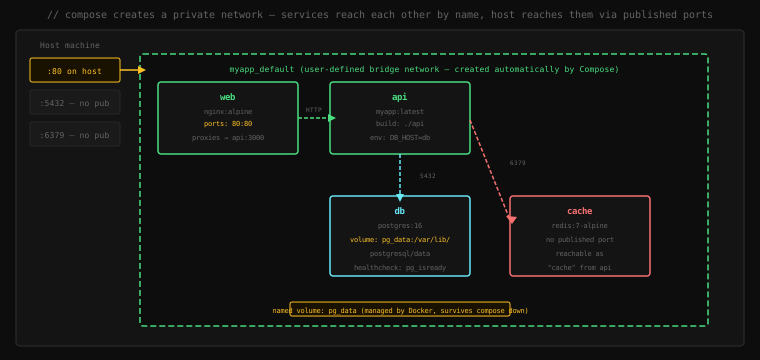
Compose automatically creates a user-defined bridge network named <project>_default, where the project name defaults to the directory name. Every service is attached to this network automatically.
On a user-defined bridge network, Docker's embedded DNS resolves service names. Inside the api container, db resolves to the database container's IP. Inside web, api:3000 reaches the API container. You don't manage IP addresses — you use the service names you wrote in compose.yaml.
Verify this:
docker compose exec api ping dbPING db (172.20.0.3): 56 data bytes
64 bytes from 172.20.0.3: icmp_seq=0 ttl=64 time=0.138 msThe db hostname resolves from inside api. This is the same DNS mechanism from lesson 17 — Compose is creating user-defined bridge networks, the DNS resolution is a Docker feature, not a Compose one.
#Named Volumes
The volumes: section at the bottom declares named volumes. Compose creates them if they don't exist. They're prefixed with the project name:
docker volume ls | grep myapplocal myapp_pg_data
local myapp_redis_dataNamed volumes survive docker compose down. The database data persists even when all containers are stopped.
#Key compose.yaml Concepts
#build: vs image:
Use image: when pulling a pre-built image. Use build: when Compose should build from a Dockerfile:
services:
  api:
    build:
      context: ./api         # directory containing the Dockerfile
      dockerfile: Dockerfile  # optional, defaults to "Dockerfile"
      args:
        - BUILD_ENV=production
    image: myapp/api:latest   # tag to give the built image
docker compose up --build forces a rebuild even if the image already exists.
#depends_on: and Health Checks
depends_on: with condition: service_healthy is the correct way to handle startup ordering. Without a condition, depends_on only waits for the container to start — not for the application inside it to be ready. A postgres container starts in seconds, but postgres itself takes several more seconds to initialize.
services:
  api:
    depends_on:
      db:
        condition: service_healthy   # wait until db passes its healthcheck
      cache:
        condition: service_started   # just wait for the container to start
The healthcheck: on the db service defines what "healthy" means:
  db:
    healthcheck:
      test: ["CMD-SHELL", "pg_isready -U appuser -d appdb"]
      interval: 5s      # run check every 5s
      timeout: 3s       # fail if check takes longer than 3s
      retries: 5        # mark unhealthy after 5 consecutive failures
start_period: 10s # don't count failures in the first 10s (startup grace)#Environment Variables
Hardcoding secrets in compose.yaml is fine for local development, bad for anything shared. The standard pattern is a .env file:
.env:
POSTGRES_PASSWORD=secret
POSTGRES_USER=appuser
POSTGRES_DB=appdbcompose.yaml:
  db:
    image: postgres:16-alpine
    environment:
      POSTGRES_DB: ${POSTGRES_DB}
      POSTGRES_USER: ${POSTGRES_USER}
      POSTGRES_PASSWORD: ${POSTGRES_PASSWORD}
Compose automatically reads .env from the project directory and substitutes ${VAR} references. Add .env to .gitignore — commit .env.example with placeholder values instead.
You can also pass through environment variables from the host without a value, which causes Compose to inherit them from the host shell:
  api:
    environment:
- DATABASE_URL # no value — inherited from host environment#Restart Policies
  db:
    restart: unless-stopped
Options:
no(default) — don't restart on failurealways— always restart, including on daemon startupon-failure— restart only if the container exits with a non-zero codeunless-stopped— restart always, except when explicitly stopped withdocker compose stop
unless-stopped is the standard choice for production-like local services you want to survive reboots.
#The Essential Compose Commands
# Start all services (detached)
docker compose up -d

# Start and force rebuild of images
docker compose up -d --build

# Start specific services only
docker compose up -d db cache

# See all running services
docker compose psNAME IMAGE COMMAND STATUS PORTS
myapp-api-1 kennethreitz/httpbin ... Up (healthy)
myapp-cache-1 redis:7-alpine ... Up
myapp-db-1 postgres:16-alpine ... Up (healthy)
myapp-web-1 nginx:alpine ... Up 0.0.0.0:8080->80/tcp# Tail logs from all services
docker compose logs -f
# Logs from a specific service
docker compose logs -f api
# Run a one-off command inside a service container
docker compose exec db psql -U appuser -d appdb
# Scale a service to multiple instances
docker compose up -d --scale api=3
# Stop all services (containers paused, not removed)
docker compose stop
# Stop and remove containers + networks (volumes preserved)
docker compose down
# Stop and remove EVERYTHING including volumes — destroys database data
docker compose down --volumesThe distinction between stop and down matters. stop pauses containers but leaves them in place — up restarts them quickly. down removes containers and the network — the next up recreates them fresh. --volumes additionally deletes named volumes — only use this when you genuinely want to wipe your local database.
#Override Files
Compose automatically merges compose.yaml with compose.override.yaml if it exists. This is the standard pattern for dev/prod configuration differences:
compose.yaml — the base definition, committed to git:
services:
  api:
    image: myapp/api:latest
    environment:
      - DATABASE_URL
compose.override.yaml — local development overrides, gitignored:
services:
  api:
    build: ./api           # build locally instead of pulling
    volumes:
      - ./api:/app         # bind mount source for hot reload
    environment:
      - DATABASE_URL=postgres://appuser:secret@db/appdb
      - DEBUG=true
    ports:
      - "3000:3000"        # expose API port directly for debugging
The override adds to and replaces fields from the base file. The api service gets the build: configuration from the override, the volumes: and ports: are added, and environment: is merged.
For CI or production, use a different override with --file:
docker compose -f compose.yaml -f compose.prod.yaml up -d#Profiles: Optional Services
Some services should only start in specific contexts — a database admin UI in development, a mock SMTP server for testing, a metrics scraper locally. Profiles let you group these:
services:
  db:
    image: postgres:16-alpine
    # no profile — always starts

  adminer:
    image: adminer
    ports:
      - "8081:8080"
    profiles:
      - debug    # only starts when --profile debug is passed
    depends_on:
- db# Start just the defaults (db, cache, api, web)
docker compose up -d
# Start everything including debug services
docker compose --profile debug up -d#Watching for File Changes
Docker Compose 2.22+ introduced watch mode — it automatically rebuilds or syncs files when source changes:
services:
  api:
    build: ./api
    develop:
      watch:
        - action: sync           # copy changed files into the running container
          path: ./api/src
          target: /app/src
        - action: rebuild        # full rebuild on these changes
path: ./api/package.jsondocker compose watchNow edits to ./api/src are synced into the running container in real time. Changes to package.json trigger a rebuild and restart. This is the modern alternative to bind-mounting your entire source tree.
#Tearing Down
docker compose down[+] Running 5/5
✔ Container myapp-web-1 Removed
✔ Container myapp-api-1 Removed
✔ Container myapp-cache-1 Removed
✔ Container myapp-db-1 Removed
✔ Network myapp_default RemovedContainers and network are gone. The volumes — myapp_pg_data and myapp_redis_data — are still there. Next docker compose up starts fresh containers that reconnect to the existing volumes. Your database data persists.
To also wipe the volumes:
docker compose down --volumes ✔ Volume myapp_pg_data Removed
✔ Volume myapp_redis_data RemovedClean slate.
cd .. && rm -rf myappKey Takeaway: Docker Compose is the tool for defining and running multi-container applications — a single
compose.yamlfile describes every service, volume, and network, anddocker compose up -dcreates all of them in dependency order. Services communicate by name on the automatically-created project network, eliminating any need to manage IP addresses. Usedepends_onwithcondition: service_healthyand explicit healthchecks to handle startup ordering correctly. Named volumes persist acrossdocker compose down— only--volumesdestroys them. Override files (compose.override.yaml) cleanly separate base definitions from environment-specific configuration. Compose is the standard local development environment for any application with more than one container.