Layered Architecture: Docker Images Are Onions
Why Docker images are built in immutable read-only layers, how layer caching makes rebuilds fast, and what happens when you add a layer unnecessarily.
#You Already Know This — Let's Go Deeper
We've touched layers in three previous lessons. Lesson 8 built an OverlayFS mount by hand and watched copy-on-write happen. Lesson 11 showed how multiple containers share read-only lower layers. Lesson 12 introduced the ordering principle: stable instructions first, volatile last.
Now we're going to peel the onion the rest of the way.
What exactly is a layer? Where does it live on disk? How does Docker decide a cache is valid? What's the cost of having too many layers? And what's the trap that developers fall into repeatedly — the one where they think they cleaned up a file but they didn't?
Let's get into the internals.
#What a Layer Is on Disk
Every layer is a content-addressed tarball. When a RUN, COPY, or ADD instruction completes, Docker takes a snapshot of the filesystem changes — every new file, every modified file, every deleted file (represented as a whiteout) — and packages it as a compressed tar archive.
That archive gets a SHA256 hash of its content. That hash is the layer ID. Same content → same hash → same layer ID, always.
You can see your local layers at:
ls /var/lib/docker/overlay2/0a1b2c3d4e5f... # each directory is one layer
1b2c3d4e5f6a...
2c3d4e5f6a7b...
l/ # symlinks for shorter pathsEach numbered directory is a cached layer. Multiple images can reference the same layer directory — when ubuntu:22.04 and python:3.12-slim both need the same base filesystem layer, they point to one copy on disk, not two.
#docker history — Your Layer X-Ray
The single most useful command for understanding an image:
docker history python:3.12-slimIMAGE CREATED CREATED BY SIZE
a6a45e5d2fcd 3 weeks ago CMD ["python3"] 0B
<missing> 3 weeks ago ENTRYPOINT [] 0B
<missing> 3 weeks ago ENV PYTHON_GET_PIP_URL=https://github.com/... 0B
<missing> 3 weeks ago ENV PYTHON_VERSION=3.12.2 0B
<missing> 3 weeks ago RUN /bin/sh -c set -eux; ... pip install ... 12.1MB
<missing> 3 weeks ago RUN /bin/sh -c set -eux; ... python install ... 29.8MB
<missing> 3 weeks ago RUN /bin/sh -c apt-get update && apt-get ... 7.12MB
<missing> 3 weeks ago /bin/sh -c #(nop) ADD file:abc123... in / 74.8MBRead it bottom to top — that's the order layers were added. The bottom layer is the base Debian filesystem (74.8 MB). Working up: apt packages, Python binary, pip, environment variables, the default command.
<missing> in the IMAGE column means that layer was built on a different machine and you don't have the intermediate image IDs locally — which is normal for images pulled from a registry.
SIZE 0B for ENV, CMD, ENTRYPOINT — those instructions only write metadata, not filesystem content. They don't add bytes to the image.
Now inspect your own image from lesson 12:
docker history myapp:1.0IMAGE CREATED BY SIZE
d1e2f3a4b5c6 CMD ["uvicorn" "main:app" "--host" ...] 0B
<missing> EXPOSE map[8000/tcp:{}] 0B
<missing> ENV PORT=8000 0B
<missing> COPY . . 4.21kB
<missing> RUN pip install --no-cache-dir -r req... 52.3MB
<missing> COPY requirements.txt . 312B
<missing> WORKDIR /app 0B
<missing> /bin/sh -c #(nop) ADD file:... 74.8MB ← python:3.12-slim baseTwo layers with real size: the base image (74.8 MB, inherited) and the pip install (52.3 MB). Everything else is metadata or tiny content copies.
See the full commands without truncation:
docker history --no-trunc myapp:1.0This shows the complete RUN command for every layer — invaluable when auditing an image you didn't build yourself.
#The Cost of Every Layer
Layers are not free. Each one has overhead:
- Metadata — checksums, timestamps, parent references stored in the image manifest
- Storage — a directory in
/var/lib/docker/overlay2/per layer - Mount overhead — at container start, every layer becomes part of the OverlayFS
lowerdirstack. More layers = deeper stack = marginally slower filesystem operations
In practice, the layer count limit in older Docker versions was 127 layers (a hard OverlayFS constraint on some kernel versions). Modern kernels raised this, but having hundreds of layers in one image is still a sign something went wrong in the Dockerfile.
More practically: unnecessary layers mean unnecessary size. And that's where the most common trap lives.
#The RUN rm Trap
Here's a Dockerfile that looks like it cleans up after itself:
FROM ubuntu:22.04
RUN apt-get update && apt-get install -y build-essential
RUN rm -rf /var/lib/apt/lists/*
COPY . /app
Let's build it and check the size:
docker build -t bloated .
docker image ls bloatedREPOSITORY TAG IMAGE ID CREATED SIZE
bloated latest a1b2c3d4e5f6 10 seconds ago 419MBNow fix it — chain the cleanup into the same RUN:
FROM ubuntu:22.04
RUN apt-get update && \
    apt-get install -y --no-install-recommends build-essential && \
    rm -rf /var/lib/apt/lists/*
COPY . /appdocker build -t lean .
docker image ls leanREPOSITORY TAG IMAGE ID CREATED SIZE
lean latest b2c3d4e5f6a7 8 seconds ago 259MB160 MB difference. Same packages installed. Same end result. Just different layering.
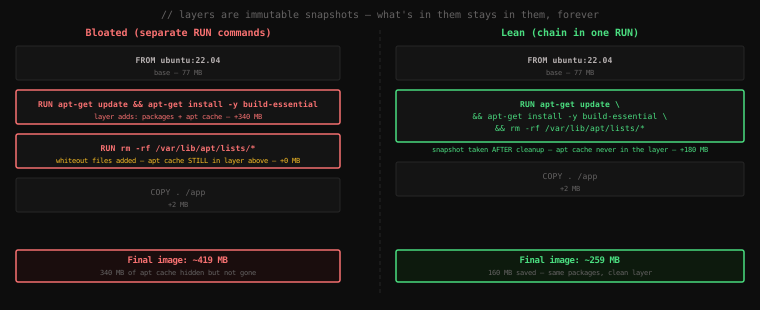
The reason connects back to lesson 8. When you rm -rf /var/lib/apt/lists/* in a separate RUN, OverlayFS adds whiteout files to that layer — the files are hidden but the bytes from the previous layer are still on disk. The image ships with both: the apt cache in layer 2 and the whiteouts masking it in layer 3.
When everything is in one RUN, the snapshot is taken after the cleanup. The apt cache was created and deleted within the same layer boundary — the snapshot never saw it. It never entered the layer store.
#Proving It with docker history
docker history bloatedIMAGE CREATED BY SIZE
... COPY . /app 2.1kB
... RUN /bin/sh -c rm -rf /var/lib/apt/lists/* 0B ← 0 bytes added
... RUN /bin/sh -c apt-get update && apt-get install 340MB ← still here!
... ADD file:... 77.4MBLayer 2 shows 340 MB. Layer 3 (the rm) shows 0 bytes added. The cleanup layer doesn't remove bytes from the previous layer — it only adds whiteouts. The 340 MB is permanent.
docker history leanIMAGE CREATED BY SIZE
... COPY . /app 2.1kB
... RUN /bin/sh -c apt-get update && apt-get install 180MB ← packages minus cache
... ADD file:... 77.4MBOne RUN layer, 180 MB — just the packages, no cache. The cleanup happened before the snapshot.
#The Secret Security Trap
The same mechanism that traps developers with large files also traps them with secrets.
This Dockerfile looks like it handles credentials safely:
FROM python:3.12-slim
COPY private-key.pem /tmp/private-key.pem
RUN pip install some-private-package --cert /tmp/private-key.pem
RUN rm /tmp/private-key.pem
Wrong. The COPY creates a layer with private-key.pem fully readable. The RUN rm adds a whiteout. Anyone who runs:
docker save myapp -o myapp.tar
tar xf myapp.tar
# dig into the layer tarballs...
...will find private-key.pem in the layer created by COPY. The rm didn't scrub it — it just hid it.
The fix: either handle the secret in the same RUN that uses it (if it's a file created by a command), or use build secrets (a BuildKit feature we'll cover in the multi-stage builds lesson):
# BuildKit secret mount — the file is available during this RUN but never written to any layer
RUN --mount=type=secret,id=privkey \
    pip install some-private-package --cert /run/secrets/privkey
The key doesn't touch any layer at all.
#dive — The Layer Inspector
docker history shows layer sizes but not what's inside them. For that, install dive — an open-source tool that lets you browse layer contents interactively:
# Install (Linux)
wget https://github.com/wagoodman/dive/releases/download/v0.12.0/dive_0.12.0_linux_amd64.deb
sudo apt install ./dive_0.12.0_linux_amd64.deb

# Run it
dive myapp:1.0
dive opens an interactive TUI:
┃ ● Layers ┣━━━━━━━━━━━━━━━━━━━━━━━━━━━━━━━━━━━━━━━━━━━━━━━━━━━
Cmp   Size  Command
     74.8MB ADD file:...  ← base layer
      180B   WORKDIR /app
      312B   COPY requirements.txt .
     52.3MB  RUN pip install --no-cache-dir ...
     4.21kB  COPY . .

┃ Current Layer Contents ┣━━━━━━━━━━━━━━━━━━━━━━━━━━━━━━━━━━━━━━
Permission     UID:GID    Size    Filetree
drwxr-xr-x  0:0      52.3MB  usr/
drwxr-xr-x  0:0      52.3MB  └── local/
drwxr-xr-x  0:0      52.3MB    └── lib/
drwxr-xr-x  0:0      52.3MB      └── python3.12/
drwxr-xr-x  0:0      52.3MB        └── dist-packages/
                                       ├── fastapi/
                                       └── uvicorn/
Select any layer on the left, browse its exact filesystem contents on the right. Tab between panels, arrow keys to navigate. For auditing a third-party image or hunting down what's eating your image size, dive is indispensable.
It also shows an image efficiency score — the percentage of image bytes that are actually unique and useful versus bytes wasted by the RUN rm pattern.
#Layer Deduplication on Pull
The layer-as-content-addressable-tarball design pays off when pulling images from registries.
docker pull python:3.12-slim
docker pull python:3.11-slim
During the second pull, watch the output:
3.11-slim: Pulling from library/python
7264a8db...: Already exists     ← shared Debian base layer
a6ba1fd4...: Pull complete
0b162c69...: Pull complete
Already exists — the Debian base layer is identical between python:3.12-slim and python:3.11-slim. Docker skips the download entirely. Only the layers that differ (the Python binary itself) are transferred.
This is why pulling a new version of an image you already have a similar version of is fast — you only download the diff, not the whole image. And why a CI server that builds frequently saves enormous amounts of bandwidth just by having a warm layer cache.
#How Layer Cache Invalidation Works
Docker's build cache is keyed on:
- The base image ID — if
FROM python:3.12-slimpoints to a newer image than last time, every subsequent layer is invalidated - The instruction itself — if the
RUNorCOPYtext changes, that layer and everything below is invalidated - For
COPY/ADD— the file content — Docker checksums the files being copied. Ifrequirements.txthasn't changed byte-for-byte, theCOPY requirements.txtlayer is a cache hit. If even one byte changed, it's a miss — and so is everything below it
This last point is why the ordering principle from lesson 12 matters so deeply. A cache miss cascades down. If COPY . . (your code) is above RUN pip install, every code change triggers a fresh pip install. Invert the order and pip install is only triggered when requirements.txt actually changes.
#Flattening Layers: When and Why
Sometimes you want to collapse all layers into one — squash the image. Reasons:
- Distributing a proprietary image where you don't want layer-by-layer inspection
- An image that went through many experimental RUN commands and has accumulated bloat that chained
&&can't fix retroactively - The rare case where you're hitting layer count limits
Docker doesn't have a native --squash flag in current versions (it was experimental and removed). The practical approach is a single-stage rebuild from scratch, or using docker export + docker import:
# Export a running container's filesystem (flat, no layers)
docker export $(docker run -d myapp:1.0 sleep 1) | docker import - myapp:flat

docker image lsREPOSITORY TAG IMAGE ID SIZE
myapp 1.0 d1e2f3a4... 258MB
myapp flat e2f3a4b5... 258MB ← same size but ONE layerThe size is the same — flattening doesn't remove bytes, it just collapses the layer structure. The real tool for lean images is multi-stage builds (lesson 16) — we'll cover those in detail.
Key Takeaway: Each
RUN,COPY, andADDinstruction creates an immutable, content-addressed tarball stored in/var/lib/docker/overlay2/.docker historyshows every layer and its size — read it to audit where your image's bytes come from. The critical trap:RUN rmin a separate instruction doesn't remove bytes from the previous layer — it only adds whiteout files. The bytes are hidden but still shipped. Always chain install + cleanup in a singleRUNcommand so the snapshot is taken after cleanup, not before. The same trap applies to secrets:COPY secret.pem+RUN rm secret.pemleaves the secret in the layer store permanently. Usediveto browse layer contents interactively, and always use.dockerignoreto prevent junk from entering layers viaCOPY . ..