Cgroups: Setting the Ceiling
How Linux Control Groups let us set hard limits on CPU, RAM, and I/O — so one container can never starve the rest of the system.
#The Gap Namespaces Leave
We spent the last lesson making processes believe they're alone. PID namespace: you can only see your own processes. NET namespace: you have your own network stack. MNT namespace: your own filesystem. Six lies, stacked together, producing the illusion of an isolated machine.
But here's what namespaces don't do: they don't limit how much of the actual hardware a process can consume.
A process in its own PID namespace can still fork-bomb the host — spawning thousands of children that eat all available CPU until the machine becomes unresponsive. A container with its own MNT namespace can still allocate 28 GB of RAM and starve every other container on the server. Namespace isolation is about visibility. It says nothing about consumption.
This is the gap cgroups fill.
#What Cgroups Are
Control groups (cgroups) are a Linux kernel feature that organizes processes into hierarchical groups and enforces resource limits, priorities, and accounting on each group.
The key word is enforces. Not monitors. Not alerts. Enforces. When a cgroup hits its memory ceiling, the kernel OOM-kills a process inside it. When a cgroup hits its CPU quota, the kernel throttles its processes — they don't run until their quota resets. The ceiling is hard.
Cgroups were merged into the Linux kernel in 2007 by engineers at Google, who needed exactly this for their internal container infrastructure. They'd been running containerized workloads at scale for years — cgroups were how they kept one job from blowing up the machine.
#The Hierarchy Model
Cgroups are organised as a tree. Every process on the system belongs to exactly one cgroup. When you start a process, it inherits its parent's cgroup. You can then move it to a different one.
The tree structure means limits cascade: a child cgroup can never exceed its parent's limit, no matter what you set on the child.
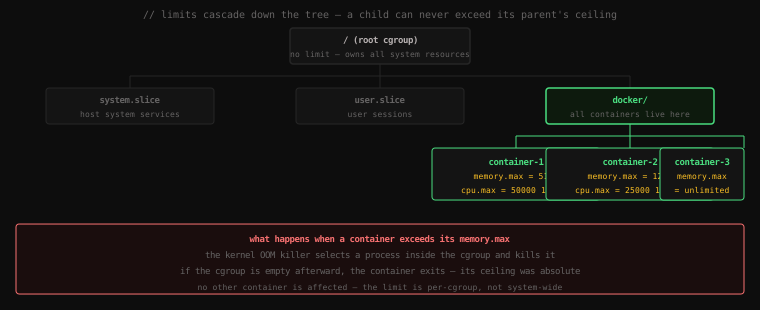
On a modern Linux system running systemd, this tree lives at /sys/fs/cgroup. Let's look at it:
ls /sys/fs/cgroupcgroup.controllers cgroup.max.depth cgroup.stat
cgroup.events cgroup.max.descendants cgroup.subtree_control
cgroup.freeze cgroup.procs cpu.pressure
cgroup.kill cgroup.threads cpuset.cpus
...
docker/ init.scope/ system.slice/
user.slice/That docker/ directory is where all running containers live. Each container gets a subdirectory there. Let's look at one:
# If you have Docker running and a container active:
ls /sys/fs/cgroup/docker/<container-id-1>/
<container-id-2>/
cgroup.controllers
cgroup.events
...Each container ID directory is a cgroup. The files inside control and report on that container's resource usage.
#Cgroup v1 vs Cgroup v2
Before we go hands-on, one important piece of context: there are two versions of the cgroup API.
Cgroup v1 (the original) had a separate hierarchy per resource controller. Memory lived in /sys/fs/cgroup/memory/, CPU in /sys/fs/cgroup/cpu/, and so on. Managing them was awkward — moving a process meant updating multiple hierarchies.
Cgroup v2 (unified hierarchy) put everything under a single tree at /sys/fs/cgroup/. One hierarchy, all controllers. It was merged in Linux 4.5 (2016) and became the default on most distributions around 2019–2021.
Check which version you're on:
stat -fc %T /sys/fs/cgroup/cgroup2fsIf you see cgroup2fs, you're on v2 — which is what this lesson uses. If you see tmpfs, you're on v1 (run mount | grep cgroup to find the mount points).
#Hands-on: Building a Cgroup from Scratch
Let's create a cgroup manually and enforce a real memory limit. This is exactly what Docker does every time you start a container — we're just doing it by hand so you can see the mechanism.
First, install stress — a tool purpose-built for consuming resources:
sudo apt install stressNow create a new cgroup. In cgroupv2, creating a cgroup is as simple as making a directory:
sudo mkdir /sys/fs/cgroup/my-demo
ls /sys/fs/cgroup/my-democgroup.controllers cgroup.events cgroup.freeze cgroup.kill
cgroup.max.depth cgroup.procs cgroup.stat cgroup.subtree_control
cgroup.threads cgroup.type cpu.pressure io.pressure
memory.current memory.events memory.high memory.low
memory.max memory.min memory.oom.group memory.pressure
memory.stat memory.swap.current memory.swap.maxThe kernel populated it automatically with control files. We care about a few:
memory.max— hard ceiling; processes get OOM-killed if they exceed itmemory.current— live reading of current memory usagecgroup.procs— the PIDs of processes in this cgroup
Let's set a 50 MB memory limit:
echo "52428800" | sudo tee /sys/fs/cgroup/my-demo/memory.max52428800That's 50 × 1024 × 1024 = 52,428,800 bytes. The limit is now set. Now let's add a process to this cgroup and try to exceed it.
Open two terminals. In terminal 1, start a shell inside the cgroup:
# Write the current shell's PID into the cgroup
echo $$ | sudo tee /sys/fs/cgroup/my-demo/cgroup.procs12843Your shell is now in the cgroup. Every process it spawns will inherit the cgroup membership. Now let's try to allocate 200 MB of memory — four times our 50 MB ceiling:
stress --vm 1 --vm-bytes 200M --timeout 10sYou're asking stress to fork one worker that allocates and touches 200 MB of RAM continuously for 10 seconds.
Watch what happens:
stress: info: [12844] dispatching hogs: 0 cpu, 0 io, 1 vm, 0 hdd
stress: FAIL: [12844] (415) <-- worker 12845 got signal 9
stress: WARN: [12844] (417) now reaping child worker processes
stress: FAIL: [12844] (451) failed run completed in 0s
Signal 9 — SIGKILL. The kernel's OOM killer shot the stress worker the moment it tried to exceed the 50 MB ceiling. Not a graceful shutdown. Not an error message. A kill signal, immediately.
In terminal 2, while stress is running, watch the memory usage live:
watch -n 0.5 cat /sys/fs/cgroup/my-demo/memory.current52428800 ← at the ceiling
52428800
52428800
0 ← process killed, memory freedIt hit the ceiling, held there, and the OOM killer fired. The cgroup is now empty.
Check the OOM event counter to confirm:
cat /sys/fs/cgroup/my-demo/memory.eventslow 0
high 0
max 3
oom 1
oom_kill 1oom_kill 1 — one process was killed by the OOM killer. The limit held.
Cleanup — remove the cgroup:
sudo rmdir /sys/fs/cgroup/my-demoA cgroup directory can only be removed when it's empty. If processes are still in it, rmdir will fail. Docker handles this cleanup automatically when a container exits.
#CPU Limits: The Quota Model
Memory limits are binary — you either have the memory or you're killed. CPU limits work differently: instead of killing, the kernel throttles.
The CPU controller in cgroupv2 uses a quota model. You set cpu.max as two numbers: quota period. This means "this cgroup can use quota microseconds of CPU time every period microseconds."
sudo mkdir /sys/fs/cgroup/cpu-demo

# Allow 50ms of CPU time per 100ms period = 50% of one CPU core
echo "50000 100000" | sudo tee /sys/fs/cgroup/cpu-demo/cpu.max50000 100000Add your shell to it:
echo $$ | sudo tee /sys/fs/cgroup/cpu-demo/cgroup.procsNow run a CPU-intensive workload:
# Spin-loop for 5 seconds — would normally pin a core at 100%
stress --cpu 1 --timeout 5s &
While it runs, check CPU usage from the host:
top -p $(cat /sys/fs/cgroup/cpu-demo/cgroup.procs | head -1) PID USER PR NI VIRT RES SHR S %CPU %MEM
12901 root 20 0 3624 876 748 R 50.0 0.050% CPU — exactly the quota. stress is trying to consume 100% of a core, but the kernel throttles it at the 50ms/100ms boundary. The process runs for 50ms, then is paused until the next 100ms period begins, then runs again.
Clean up:
sudo rmdir /sys/fs/cgroup/cpu-demo#The PID Controller: Stopping Fork Bombs
One more controller worth knowing — pids.max. It limits the total number of processes (and threads) that can exist in a cgroup at once.
Without this, a container running malicious or buggy code could fork-bomb the host — spawning processes faster than the kernel can kill them, eventually exhausting the system's PID space and making the machine unresponsive.
sudo mkdir /sys/fs/cgroup/pid-demo

# Allow at most 10 processes in this cgroup
echo "10" | sudo tee /sys/fs/cgroup/pid-demo/pids.max

echo $$ | sudo tee /sys/fs/cgroup/pid-demo/cgroup.procs
Now try to spawn more than 10 processes:
for i in $(seq 1 20); do sleep 100 & donebash: fork: retry: Resource temporarily unavailable
bash: fork: retry: Resource temporarily unavailable
bash: fork: Resource temporarily unavailableThe kernel refused the fork calls once the cgroup hit 10 processes. The fork bomb is contained to whatever fits inside the ceiling.
#How Docker Wires This Up
Every time you run a container, Docker creates a cgroup at /sys/fs/cgroup/docker/<container-id>/. It then populates the limit files based on the flags you passed:
# This Docker flag:
docker run --memory 512m --cpus 0.5 nginx

# Translates to exactly:
echo "536870912"    > /sys/fs/cgroup/docker/<id>/memory.max
echo "50000 100000" > /sys/fs/cgroup/docker/<id>/cpu.max
When the container process starts, Docker writes its PID into cgroup.procs. From that point on, the kernel enforces the limits automatically — Docker doesn't need to do anything else. The enforcement is in the kernel, not in Docker.
When the container exits, Docker removes the cgroup directory. Clean slate.
You can see the cgroup limits on a running container:
docker run -d --memory 64m --name demo nginx
docker inspect demo | grep -A2 Memory"Memory": 67108864,
"MemorySwap": 67108864,And confirm it on the cgroupfs directly:
cat /sys/fs/cgroup/docker/$(docker inspect --format='{{.Id}}' demo)/memory.max67108864Same number, two different views — Docker's JSON API and the raw kernel interface underneath it.
#What Cgroups Actually Protect Against
Let's be concrete about the threat model. Cgroups protect against two main failure classes:
Noisy neighbor. Container A has a memory leak. Without cgroups, it would consume all available RAM, forcing the kernel to swap or OOM-kill processes across the entire host — taking down Container B, Container C, and every other workload. With cgroups, Container A gets OOM-killed inside its own cgroup. Container B never notices.
Malicious consumption. Container A is trying to starve other tenants by pinning all CPUs and allocating all memory. With CPU quotas and memory limits, it gets exactly its allotted share and no more. The attack vector is closed.
Neither of these required any application-level changes. The enforcement is in the kernel, transparent to the containerized process. It doesn't know it's being limited. It just hits a wall it can't see and can't move.
Key Takeaway: Namespaces give isolation — a process can't see other processes, networks, or filesystems. Cgroups give resource limits — a process can't consume more than its ceiling of CPU, RAM, I/O, or process count. Together they form the complete foundation of a container: a process with a lie about its environment (namespaces) and a hard cap on how much of the machine it can take (cgroups). You can create cgroups directly by making directories under
/sys/fs/cgroup/and writing limit values into the control files — Docker does exactly this, one cgroup per container, automatically cleaned up on exit.