The Union File System
The secret sauce behind Docker's layered images — how OverlayFS merges multiple read-only layers into a single coherent filesystem view.
#The VM Image Problem
You have a Python web app. You need to ship it to production. With the VM approach, you:
- Start from a base Ubuntu image (~2.5 GB compressed)
- Install Python 3.11 and your dependencies
- Copy your application code in
- Snapshot the whole thing as a VM image (~8 GB)
Now you release version 2 of your app. You changed three Python files. To deploy v2, you build a new VM image — another 8 GB. You now have two 8 GB images on disk. Your app changed by about 200 KB. You're storing 16 GB to track a 200 KB delta.
Multiply this across a team, a registry, a deployment pipeline, and you're pushing gigabytes across the network every time anyone touches a line of code. It's wasteful in a way that gets more absurd the smaller your changes are.
There's a better model. Filesystems have known about it for decades. It's called a union filesystem.
#The Core Idea: Stack and Merge
A union filesystem takes multiple directories — called layers — and presents them as a single, unified directory tree. From the perspective of any process reading the filesystem, it looks completely normal. There's a /bin, a /usr, an /app. You ls, you cat, you cd. It behaves like any other filesystem.
The magic is underneath. Each layer contributes files. If a file exists in layer 3, you see it. If a different file exists only in layer 1, you also see it — in the same directory, as if they were always together. If the same path exists in multiple layers, the topmost layer wins.
This alone is powerful. But the real capability comes from combining it with copy-on-write.
#OverlayFS: The Linux Implementation
The union filesystem Docker uses today is OverlayFS — merged into the Linux kernel in version 3.18 (2014) and now the default storage driver for Docker on all major Linux distributions.
OverlayFS works with four directories:
lowerdir— one or more read-only layer directories, stacked. These are your image layers: the Ubuntu base, the Python runtime, your application code. They are never written to.upperdir— a single writable layer. All changes — new files, modifications, deletions — happen here.workdir— an internal scratch space OverlayFS uses during atomic operations. You create it, you never touch it.merged— the union view. This is what the container's process sees. It looks like one complete filesystem.
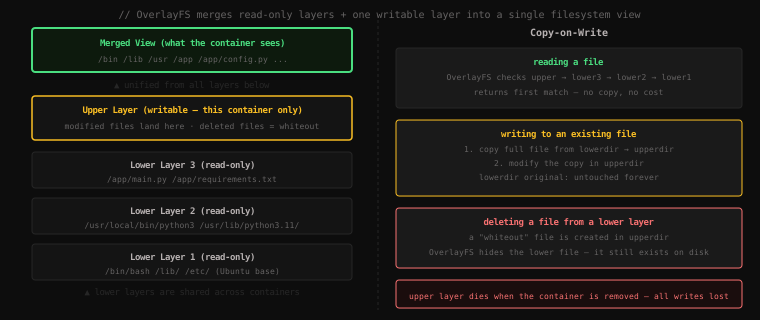
Let's build one from scratch so you can see exactly how it works.
#Hands-on: Building an OverlayFS Mount
You'll need root and a Linux machine. Let's set up the directories:
# Create our layer directories
mkdir -p /tmp/overlay/{lower1,lower2,upper,work,merged}
Let's put some files in the lower layers — imagine these are image layers:
# Lower layer 1: the "base OS" layer
echo "I am from layer 1" > /tmp/overlay/lower1/base.txt
echo "shared content"    > /tmp/overlay/lower1/shared.txt

# Lower layer 2: the "runtime" layer
echo "I am from layer 2"     > /tmp/overlay/lower2/runtime.txt
echo "layer 2 version of me" > /tmp/overlay/lower2/shared.txt
Notice shared.txt exists in both layers. We'll see what happens with it in a moment.
Now mount the OverlayFS:
sudo mount -t overlay overlay \
  -o lowerdir=/tmp/overlay/lower2:/tmp/overlay/lower1,\
upperdir=/tmp/overlay/upper,\
workdir=/tmp/overlay/work \
  /tmp/overlay/merged
The lowerdir option takes a colon-separated list — the leftmost entry is the topmost layer. So lower2 is on top of lower1.
Now look at what the merged view contains:
ls /tmp/overlay/mergedbase.txt runtime.txt shared.txtAll three files, assembled from both lower layers into one directory. Let's check their contents:
cat /tmp/overlay/merged/base.txtI am from layer 1cat /tmp/overlay/merged/runtime.txtI am from layer 2cat /tmp/overlay/merged/shared.txtlayer 2 version of meshared.txt exists in both layers. The merged view shows the lower2 version because it's the topmost layer. The lower1 version is hidden underneath — still there on disk, just masked.
#Watching Copy-on-Write
Now let's modify a file and watch what actually happens on disk. Let's edit base.txt through the merged view:
echo "modified!" > /tmp/overlay/merged/base.txt
cat /tmp/overlay/merged/base.txtmodified!That worked as expected. But where did the write actually go? Check the lower layer — the original:
cat /tmp/overlay/lower1/base.txtI am from layer 1Untouched. The original is exactly as we left it. Now check the upper layer:
ls /tmp/overlay/upperbase.txtcat /tmp/overlay/upper/base.txtmodified!There it is. OverlayFS copied the entire file from lower1 up to upper, then applied our modification to the copy in upper. The lower layer was never written to. This is copy-on-write — you pay the copy cost the first time you write to a file, and zero cost for every subsequent write to the same file (since it's already in upper).
#Watching Whiteout Files
What happens when you delete a file that lives in a read-only lower layer? OverlayFS can't actually remove the file from lowerdir — it's read-only. So it uses a trick: a whiteout file.
Let's delete base.txt from the merged view:
rm /tmp/overlay/merged/base.txt
ls /tmp/overlay/mergedruntime.txt shared.txtGone from the merged view. Now check the upper directory:
ls -la /tmp/overlay/upperc--------- 1 root root 0, 0 Apr 15 10:45 base.txtThat c at the front means it's a character device — specifically a character device with major/minor numbers 0, 0. This is a whiteout file. When OverlayFS traverses the layer stack during a directory read, if it finds a whiteout file in the upper layer, it hides any file with the same name in the lower layers.
The original file in lower1/base.txt is still there on disk — completely intact:
cat /tmp/overlay/lower1/base.txtI am from layer 1It's just invisible from the merged view. The whiteout is the lie. This is how Docker "deletes" files in a RUN rm command in a Dockerfile — it doesn't remove them from the layer they were added in. It adds a whiteout in the next layer. The file is still in your image, consuming disk space, just hidden. This is why deleting files in a separate RUN step doesn't reduce image size — and we'll come back to that when we cover multi-stage builds.
Clean up:
sudo umount /tmp/overlay/merged
rm -rf /tmp/overlay#How Docker Maps This to Images
Every line in a Dockerfile that modifies the filesystem creates a new layer:
FROM ubuntu:22.04          # ← lower layer 1: Ubuntu base
RUN apt install python3    # ← lower layer 2: + Python
COPY app/ /app             # ← lower layer 3: + your code
Each FROM, RUN, and COPY instruction produces a snapshot of the filesystem changes made by that step. These snapshots are the lower layers in an OverlayFS mount.
When you start a container from this image, Docker:
- Sets up the three image layers as read-only
lowerdir - Creates a fresh empty
upperdirfor this container instance - Mounts the OverlayFS with
mergedas the container's root filesystem
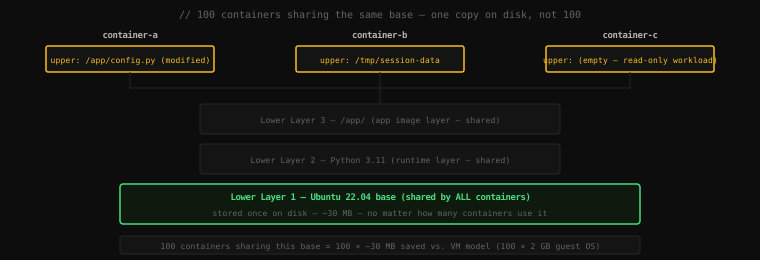
All three containers started from the same image share the exact same lower layers. The lower layers are deduplicated on disk — stored once, referenced by every container that uses them.
#The Real Storage Savings
Let's make this concrete. On a server running 20 Python web app containers:
VM model:
- 20 VMs × 8 GB each = 160 GB of disk
- 20 separate Ubuntu + Python installations
- Each VM's OS is a full private copy
Container model with OverlayFS:
- Ubuntu base layer: ~30 MB (stored once)
- Python runtime layer: ~80 MB (stored once)
- App code layer: ~5 MB (stored once)
- 20 upper layers (mostly empty writes, logs): ~20 × 10 MB = 200 MB
- Total: ~415 MB
The shared lower layers are what make containers cheap to start and cheap to store. Pull ubuntu:22.04 once, and every subsequent image built on top of it reuses those layers without re-downloading them. Docker's layer cache is why docker pull is fast after the first time — it only downloads the layers you don't have.
#The Ephemeral Upper Layer
One critical property before we move on: the upper layer dies with the container.
When you docker rm a container, Docker deletes its upperdir. Every write that happened inside that container — every log file, every temp file, every database row written to a local SQLite, every file created at runtime — is gone.
The lower layers are untouched. The image is unchanged. The next container started from the same image gets a fresh empty upper layer, as if the previous container never ran.
This is not a bug. It's a design decision that forces containers toward a stateless architecture. If your application's important data lives in the container's writable layer, you will lose it. The solution — Docker volumes and bind mounts — is a later lesson. But understanding the union filesystem is what makes the "why" of volumes obvious: you need data to outlive the ephemeral upper layer.
Key Takeaway: OverlayFS stacks read-only lower layers with one writable upper layer and presents them as a single filesystem via the merged mount point. Reads are served from whichever layer has the file (upper wins over lower). Writes copy the file to the upper layer first (copy-on-write) — the lower layers are never modified. Deletions create whiteout files in the upper layer that mask the lower-layer file. Docker maps each Dockerfile instruction to one layer, and all containers from the same image share those read-only layers on disk — one copy of Ubuntu serves a thousand containers. The writable upper layer is created fresh per container and destroyed when the container is removed, making all in-container writes ephemeral by default.