Image vs. Container
The class vs. instance mental model — why an image is a blueprint, a container is a running process, and why you can spawn a thousand containers from one image.
#The Distinction That Trips Everyone Up
If you've used Docker for more than an hour, you've almost certainly confused images and containers at some point. You ran docker rm when you meant docker rmi. You tried to start an image. You couldn't figure out why changes you made "in Docker" disappeared.
This confusion almost always traces back to one thing: not having a crisp mental model of what an image is versus what a container is.
Here's the model in one sentence, and then we'll build it up properly:
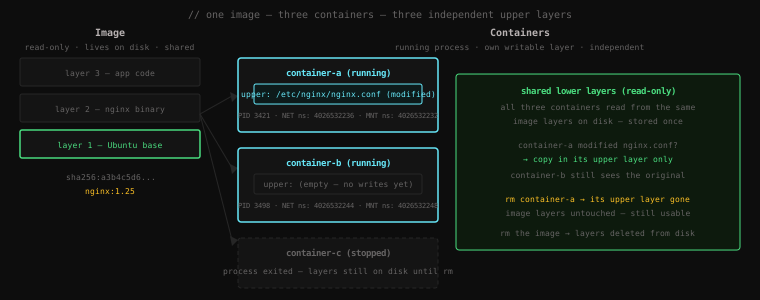
An image is a read-only filesystem snapshot. A container is a running process with a writable layer on top of that snapshot.
That's it. But let's make it visceral.
#What an Image Actually Is
We spent all of lesson 8 building this from scratch, so let's just connect the vocabulary.
An image is a stack of read-only OverlayFS layers stored on disk. Each layer is a tarball of filesystem changes — the delta from the layer below it. Layer 1 might be the Ubuntu base filesystem. Layer 2 might be "add /usr/bin/nginx and its libraries". Layer 3 might be "add /etc/nginx/nginx.conf".
That's it. No processes. No PID namespaces. No cgroups. No running anything. An image is purely a filesystem artifact — it sits on your disk doing nothing until you use it.
You can have images without any running containers. You can delete all your containers and still have images. An image is like a compiled binary sitting on disk — it does nothing until you execute it.
Check what images you have right now:
docker image lsREPOSITORY TAG IMAGE ID CREATED SIZE
ubuntu latest a6a45e5d2fcd 3 weeks ago 78.1MB
nginx latest e784f4560448 4 weeks ago 187MB
alpine latest ace17d5d883e 5 weeks ago 7.73MBThese are stored at /var/lib/docker/overlay2/ as layer directories. No processes. No resources consumed beyond disk space.
Dig into what an image actually contains:
docker image inspect nginx:latest[
{
"Id": "sha256:e784f4560448...",
"RepoTags": ["nginx:latest"],
"RootFS": {
"Type": "layers",
"Layers": [
"sha256:7264a8db...",
"sha256:a6ba1fd4...",
"sha256:0b162c69..."
]
},
"Config": {
"Cmd": ["nginx", "-g", "daemon off;"],
"ExposedPorts": {"80/tcp": {}},
"WorkingDir": ""
}
}
]Three layers (the RootFS.Layers array), an image ID, and a default command to run. That's an image. A filesystem in layers, plus metadata.
#What a Container Actually Is
A container is what happens when you run an image. It's the combination of:
- A process — the thing actually running (nginx, bash, python, whatever)
- An OverlayFS mount — the image layers as
lowerdir, plus a fresh emptyupperdirthat's unique to this container - A set of namespaces — PID, NET, MNT, UTS, IPC, USER, all isolated from the host
- A cgroup — enforcing the resource limits you specified (or Docker's defaults)
Pull on any one of those and the whole thing makes sense:
- Process exits → container is "stopped" (layers still exist, cgroup still exists, namespaces are torn down)
- Container is removed → the
upperdiris deleted, the cgroup directory is removed, the image layers are untouched - Image is removed → the layer directories on disk are deleted — but only if no container (running or stopped) is still using them
#Hands-on: One Image, Many Containers
Let's prove the independence claim. Pull nginx and start two containers from the same image:
docker run -d --name web-a nginx
docker run -d --name web-b nginxb3c4d5e6f7a8...
a1b2c3d4e5f6...Two containers, both running. Verify:
docker psCONTAINER ID IMAGE COMMAND CREATED STATUS NAMES
a1b2c3d4e5f6 nginx "/docker-entrypoint.…" 3 seconds ago Up 2 seconds web-b
b3c4d5e6f7a8 nginx "/docker-entrypoint.…" 5 seconds ago Up 4 seconds web-aNow let's go inside web-a and modify a file — the nginx welcome page:
docker exec -it web-a bashYou're inside web-a. Let's change the default HTML:
echo "<h1>I am web-a</h1>" > /usr/share/nginx/html/index.html
cat /usr/share/nginx/html/index.html<h1>I am web-a</h1>Exit:
exitNow go into web-b and check the same file:
docker exec -it web-b bash
cat /usr/share/nginx/html/index.html<!DOCTYPE html>
<html>
<head>
<title>Welcome to nginx!</title>
...The original nginx welcome page — completely untouched. Our change to web-a lived only in web-a's upper layer. web-b has its own upper layer, which has had nothing written to it. The shared image layers are immutable.
exit#The Lifecycle: Created → Running → Stopped → Removed
Containers have a lifecycle that's distinct from what most people expect. Let's walk through every state.
Running is what you get right after docker run. The process is alive, the namespaces are active, the cgroup is enforcing limits.
Stopped is what happens when the process exits or you run docker stop. The namespaces are torn down. The process is gone. But the container record — its metadata and its writable upperdir — still exists on disk.
This surprises people. Let's prove it:
docker stop web-a
docker psCONTAINER ID IMAGE COMMAND CREATED STATUS NAMES
a1b2c3d4e5f6 nginx ... 1m ago Up 1m web-bweb-a is gone from docker ps. But it still exists:
docker ps -aCONTAINER ID IMAGE COMMAND CREATED STATUS NAMES
b3c4d5e6f7a8 nginx "/docker-entrypoint.…" 2 min ago Exited (137) 30 sec ago web-a
a1b2c3d4e5f6 nginx "/docker-entrypoint.…" 2 min ago Up 2 min web-b-a shows all containers — including stopped ones. web-a is Exited. Its writable layer is still on disk.
Here's the interesting part — you can restart it and your changes will still be there:
docker start web-a
docker exec -it web-a cat /usr/share/nginx/html/index.html<h1>I am web-a</h1>The custom HTML survived the stop/start cycle. The upperdir persisted. The container's identity — its writable layer, its metadata, its assigned IP — was preserved across the restart.
This is also why docker ps hiding stopped containers trips people up. You think you have zero containers. You actually have ten stopped ones eating disk space. Always use docker ps -a to see the full picture.
Removed is the final state. docker rm deletes the container record and its upperdir:
docker rm web-a
docker exec -it web-a bashError: No such container: web-aGone. The upper layer is deleted. If you run a fresh web-a from the same nginx image, it gets a blank upper layer — the modified index.html is nowhere to be found.
The image itself is unaffected — docker image ls still shows nginx:latest. Images outlive the containers that run from them.
#Cleaning Up Containers at Exit
The default Docker behavior preserves stopped containers for inspection (logs, filesystem diffs). But for short-lived containers — a one-off script, a test run, a quick debug session — you often want the container auto-removed when the process exits.
Use --rm:
docker run --rm ubuntu cat /etc/os-releasePRETTY_NAME="Ubuntu 22.04.3 LTS"
...The container ran, printed output, and was automatically removed the moment cat exited. No stopped container left behind. docker ps -a won't show it.
This is the flag to use for any container you don't plan to restart.
#Image Tags: Versioning the Snapshot
Images have tags — human-readable labels that point to specific image IDs. The format is name:tag.
docker pull nginx:1.25
docker pull nginx:1.24
docker pull nginx:latest

docker image ls nginxREPOSITORY TAG IMAGE ID CREATED SIZE
nginx latest e784f4560448 4 weeks ago 187MB
nginx 1.25 d1a364dc548d 6 weeks ago 187MB
nginx 1.24 a8758716bb6a 4 months ago 187MBThree tags. Each tag points to an image ID (a content hash). latest is just a convention — it's not automatically the newest, it's whatever the image maintainer tagged as latest. In production, always pin a specific version tag. nginx:latest today might be a different image than nginx:latest in six months.
Notice layers can be shared even across tags. If nginx:1.25 and nginx:latest share a base Ubuntu layer, Docker stores that layer once and both tags reference it. docker image ls shows the logical size of each image — the actual disk usage (accounting for sharing) is shown by docker system df.
#Checking Real Disk Usage
Here's the command that cuts through the confusion around Docker storage:
docker system dfTYPE TOTAL ACTIVE SIZE RECLAIMABLE
Images 4 2 386.3MB 187.1MB (48%)
Containers 3 2 2.1kB 56B (2%)
Local Volumes 0 0 0B 0B
Build Cache 12 0 234.1MB 234.1MBImages — total on-disk size accounting for shared layers. "Reclaimable" is how much would be freed by docker image prune (removing untagged/unused images).
Containers — disk used by writable upper layers of all containers (running + stopped). Usually tiny unless you've written a lot of data inside containers.
Build Cache — the layer cache from docker build. Often the biggest consumer and safe to clear with docker builder prune.
Get a detailed breakdown:
docker system df -vThis shows per-image and per-container sizes. Essential for understanding what's actually eating your disk when Docker storage balloons up.
#The Mental Model, Locked In
Let's anchor it with the class/instance analogy — with the actual internals now mapped onto it:
| Image | Container | |
|---|---|---|
| Analogy | class definition | instance of the class |
| What it is | read-only layer stack | process + writable layer + namespaces + cgroup |
| Stored | on disk, in /var/lib/docker/overlay2/ | in memory (process) + on disk (upper layer) |
| Lifecycle | persists until docker rmi | created → running → stopped → removed |
| Shared | yes — many containers from one image | no — each container's upper layer is private |
After docker stop | unchanged | process gone, upper layer preserved |
After docker rm | unchanged | upper layer deleted |
After docker rmi | layers deleted (if no containers use them) | — |
This table is the answer to every "where did my changes go?" and "why can't I delete this image?" question you'll encounter.
Key Takeaway: An image is a stack of read-only filesystem layers stored on disk — no process, no memory consumed, just bytes waiting to be used. A container is a running process that gets its own writable layer on top of those image layers, plus six namespaces and a cgroup. Many containers can run from one image simultaneously — each gets an independent writable layer, so changes never bleed between them. Stopping a container kills the process but preserves the writable layer; removing the container deletes it. The image is untouched until you explicitly run
docker rmi. Always usedocker ps -ato see stopped containers — they're invisible todocker psbut still consuming disk space.