Volumes vs. Bind Mounts
Where does the data go when the container dies? The complete guide to Docker volumes, bind mounts, and tmpfs — when to use each and what happens to your data.
#The Problem With Stateless Containers
Containers are designed to be ephemeral. You start one, run some work, stop it, and throw it away. The filesystem inside a container is temporary — it's built from image layers and a thin read-write layer on top. When the container is removed, that read-write layer vanishes with it.
This is mostly a feature. Ephemeral containers can be replaced at will, scaled up and down without ceremony, rebuilt from scratch on every deploy. The statelessness is what makes containers portable and reproducible.
But not everything can be stateless. A PostgreSQL container needs to store database files that survive the container being recreated. A development server needs to pick up your code changes without rebuilding the image each time. A web process needs to write session tokens without those tokens ever touching a disk where they could be leaked.
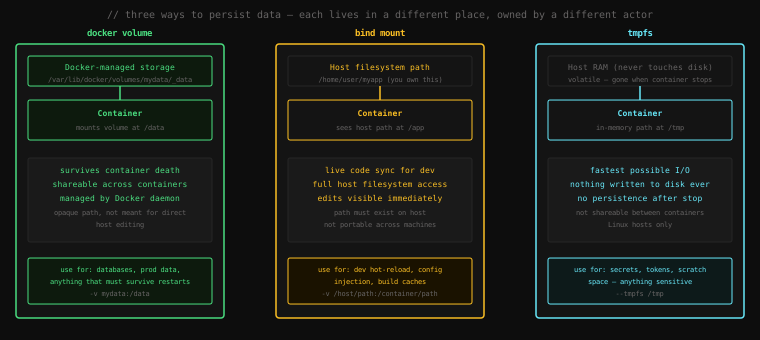
Docker's answer to all three of these situations is the same word — mounts — but with three completely different mechanisms underneath.
#The Writable Layer Problem
Before we look at each mount type, let's confirm the underlying problem.
Start a container and create a file inside it:
docker run -it --name test alpine shInside the container:
echo "important data" > /data.txt
cat /data.txtimportant dataExit and restart the same container:
exit
docker start -ai test
cat /data.txtimportant dataStill there. The writable layer persists as long as the container exists. Now remove the container:
exit
docker rm test
docker run -it --name test alpine sh
cat /data.txtcat: can't open '/data.txt': No such file or directoryGone. The container's writable layer was deleted with docker rm. The image is intact — alpine is unchanged — but everything you wrote inside the running container has disappeared.
This is by design. The writable layer is not storage. It's a scratchpad.
exit
docker rm test#docker volume: Storage Docker Manages For You
A Docker volume is a directory that lives outside the container's union filesystem, managed by the Docker daemon. When a container is removed, its writable layer is gone — but a volume survives. You can mount the same volume into a new container and find all the data exactly as it was left.
#Creating and Using a Volume
docker volume create mydataThis creates a volume named mydata. Docker manages it at /var/lib/docker/volumes/mydata/_data on the host. You don't need to go there directly — that's the point.
Mount it into a container:
docker run -it --name test -v mydata:/data alpine shThe -v mydata:/data flag mounts the mydata volume at /data inside the container. Write something:
echo "survived the test" > /data/important.txt
exit
Container is stopped. Remove it entirely:
docker rm testThe container is gone. Now start a completely fresh container from the same volume:
docker run -it --name test2 -v mydata:/data alpine sh
cat /data/important.txtsurvived the testThe data outlived the container. The volume is independent of any specific container — it's a named, persistent piece of storage that containers can attach to and detach from at will.
exit
docker rm test2#Inspecting a Volume
docker volume inspect mydata[
{
"CreatedAt": "2026-04-16T10:23:41Z",
"Driver": "local",
"Labels": {},
"Mountpoint": "/var/lib/docker/volumes/mydata/_data",
"Name": "mydata",
"Options": {},
"Scope": "local"
}
]Mountpoint is where Docker stores the data on the host. The local driver means it's a directory on the host filesystem. Docker also supports remote volume drivers (NFS, cloud storage) for production deployments where containers run on multiple machines, but that's outside the scope here.
#Anonymous Volumes
You can also specify a volume mount without naming the volume:
docker run -it -v /data alpine shDocker creates a volume with a generated hash name and mounts it at /data. These are anonymous volumes — they work identically to named volumes, but because you have no name to reference, they're effectively throw-away. They persist after the container is removed, but since you can't easily find them, they accumulate as orphaned storage.
List all volumes:
docker volume lsDRIVER VOLUME NAME
local mydata
local 7f3a9b2e1cd4d8f6a... ← anonymousRemove orphaned anonymous volumes with:
docker volume pruneIn practice: always name your volumes. Anonymous volumes exist for Dockerfile VOLUME declarations (more on that in a moment) and are rarely worth using directly.
#Volume Sharing Between Containers
Multiple containers can mount the same volume simultaneously:
docker run -d --name writer -v mydata:/data alpine sh -c 'while true; do date >> /data/log.txt; sleep 1; done'
docker run -it --name reader -v mydata:/data alpine sh
Inside the reader container:
tail -f /data/log.txtWed Apr 16 10:31:02 UTC 2026
Wed Apr 16 10:31:03 UTC 2026
Wed Apr 16 10:31:04 UTC 2026Live updates from the writer container appearing in the reader. The volume is the shared medium.
This is how multi-container applications share state: a database container writes to a volume, a backup container reads from the same volume, a monitoring container samples metrics from it.
# ctrl+c to exit tail
exit
docker rm -f writer reader#Bind Mounts: Your Host Filesystem, Directly
A bind mount doesn't use Docker-managed storage at all. It takes an existing path on your host and mounts it into the container. The container sees your actual files — not a copy, not a snapshot. The same bytes, the same directory, the same inode.
The canonical use case is development: mount your source code directory into a container running your development server, and every file save on the host is immediately visible inside the container.
mkdir /tmp/myapp
echo "version 1" > /tmp/myapp/app.txt

docker run -it --name dev \
  -v /tmp/myapp:/app \
  alpine sh
Inside the container:
cat /app/app.txtversion 1Now on the host (in a second terminal), edit the file:
echo "version 2" > /tmp/myapp/app.txtBack inside the container:
cat /app/app.txtversion 2No rebuild. No restart. The change is visible immediately because the container is directly accessing your host's filesystem.
Writes work in both directions:
# Inside the container
echo "written from container" > /app/container-output.txt
exit
On the host:
cat /tmp/myapp/container-output.txtwritten from containerThe container can write to your host filesystem just as easily as it reads from it.
docker rm dev#The Path Must Exist
Unlike volumes — which Docker creates automatically if they don't exist — bind mounts require the host path to already be there:
docker run -v /nonexistent/path:/data alpine shdocker: Error response from daemon: invalid mount config for type "bind":
bind source path does not exist: /nonexistent/pathDocker does not create the source directory. This is intentional: Docker isn't managing the host filesystem. You are.
#Read-Only Bind Mounts
Add :ro to make the mount read-only from the container's perspective:
docker run -it \
  -v /tmp/myapp:/app:ro \
  alpine sh
Inside the container:
echo "trying to write" > /app/test.txtsh: can't create /app/test.txt: Read-only file systemThe container can read the files but can't modify them. Useful for injecting configuration files or secrets that the application needs to read but shouldn't be able to overwrite.
#Why Bind Mounts Aren't for Production
Bind mounts are excellent for development but have a property that makes them wrong for production: they're tied to a specific path on a specific host machine.
Your Compose file says -v /home/user/myapp:/app. This works on your laptop. It fails on your teammate's machine if they keep their projects in a different directory. It fails in CI because /home/user/myapp doesn't exist on the CI runner. It fails in production because you're not deploying source code to the production server.
Production data should go in volumes. Development source code can go in bind mounts. The distinction is: does Docker own this data, or do you?
#tmpfs: Storage That Lives Only in RAM
A tmpfs mount creates an in-memory filesystem inside the container. It's fast — faster than any disk — and it has one absolute guarantee: the data is never written to disk at any point during its lifetime. When the container stops, the tmpfs mount is gone.
docker run -it --tmpfs /tmp alpine shInside the container:
echo "secret token" > /tmp/auth_token
cat /tmp/auth_tokensecret tokenStop the container:
exitThe auth token is gone. It was never on disk. It was never in the container's image layers. It was never in a Docker volume. It lived in the host's RAM for the duration of the container's life and was wiped clean at exit.
#When tmpfs Matters
The obvious use case is secrets. If a container needs a short-lived credential — an OAuth token, a private key, a temporary password — writing it to disk creates a window where the secret can be recovered from the filesystem even after it's been deleted. Deleted files aren't zeroed on most filesystems; the blocks are just marked as available. A tmpfs mount removes this risk entirely.
The less obvious use case is performance. A container doing heavy intermediate file I/O — unpacking large archives, sorting gigabytes of data through temp files — runs significantly faster when those temp files live in RAM instead of on a disk or even the overlay2 filesystem.
# Size and mode flags:
docker run --tmpfs /tmp:rw,size=512m,mode=1777 alpine sh
You can cap the size (size=512m) to prevent a runaway process from consuming all available RAM.
#Limits
tmpfs mounts aren't shared between containers — each container gets its own independent in-memory space. They're also Linux-only; the --tmpfs flag has no effect on Docker Desktop on Windows or macOS (the Linux VM handles the mount, but the semantics are the same for your containers).
#The VOLUME Instruction in Dockerfiles
You'll encounter a VOLUME instruction in many official Dockerfiles:
FROM postgres:16
...
VOLUME /var/lib/postgresql/data
This declares that /var/lib/postgresql/data is a mount point. If you start a container from this image without explicitly providing a volume at that path, Docker automatically creates an anonymous volume and mounts it there.
The intent is to prevent a common mistake: running a database container without any volume and losing all your data when the container is stopped. The VOLUME instruction is a hint to operators — "this path contains important data, please provide a volume here."
docker run -d --name pg postgres:16
docker inspect pg | grep -A 10 Mounts"Mounts": [
{
"Type": "volume",
"Name": "7f3a9b2e1cd4d8f6a...",
"Source": "/var/lib/docker/volumes/7f3a9b2e...",
"Destination": "/var/lib/postgresql/data",
"Mode": "",
"RW": true,
"Propagation": ""
}
]Docker created an anonymous volume. Your database files are persisted — but in an anonymously-named volume that's hard to reference explicitly. The better practice is always to provide a named volume explicitly:
docker run -d --name pg -v pg_data:/var/lib/postgresql/data postgres:16Now you can reference pg_data by name. You can back it up, restore it, mount it into a secondary container for inspection — all by name.
docker rm -f pg
docker volume rm pg_data#Volume Backup and Restore
Because volumes are just directories on the host, you can back them up by spinning up a temporary container that reads the volume and writes an archive:
# Backup
docker run --rm \
  -v mydata:/source:ro \
  -v /tmp:/backup \
  alpine tar czf /backup/mydata-backup.tar.gz -C /source .
This mounts mydata read-only at /source and your host's /tmp directory at /backup. It runs tar to create a compressed archive and drops it on your host at /tmp/mydata-backup.tar.gz. Then the container exits and is automatically removed (--rm).
# Restore
docker run --rm \
  -v mydata:/target \
  -v /tmp:/backup:ro \
  alpine tar xzf /backup/mydata-backup.tar.gz -C /target
Same pattern in reverse. The volume doesn't need a live container attached to it — the backup and restore containers are ephemeral tools. The volume is the durable artifact.
#The Decision Tree
When you need to persist data or share files:
What is this data?
├── Application state (database files, uploads, logs)
│   └── → named volume  (-v myname:/path)
│
├── Source code or configuration being actively edited
│   └── → bind mount  (-v /host/path:/container/path)
│
├── Sensitive short-lived data (tokens, keys, passwords)
│   └── → tmpfs  (--tmpfs /path)
│
└── Nothing — the container is compute-only, data lives elsewhere
    └── → no mount needed
The summary rule: Docker owns production data (volumes), you own development files (bind mounts), nobody owns secrets (tmpfs).
#Cleaning Up
Volumes are not cleaned up by docker rm. They outlive containers intentionally. This means they can accumulate:
docker volume lsRemove a specific volume (only works if no container is using it):
docker volume rm mydataRemove all volumes not currently mounted in any container:
docker volume prunedocker system prune removes stopped containers, unused networks, and dangling images — but not volumes unless you add --volumes:
docker system prune --volumesBe careful with this on a development machine. You will lose database data if you have postgres or mysql containers whose volumes you haven't backed up.
Key Takeaway: A container's writable layer is a scratchpad — it vanishes when the container is removed. Docker provides three mount types for data that must outlive a container: volumes (Docker-managed persistent storage, the right choice for production databases and application state), bind mounts (direct access to a host filesystem path, the right choice for development code sync and config injection), and tmpfs (in-memory storage that never touches disk, the right choice for short-lived secrets and scratch computation). Always name your volumes — anonymous volumes accumulate silently and become orphaned storage. The
VOLUMEinstruction in a Dockerfile creates an anonymous volume automatically if you forget to provide one; override it with an explicit named volume to keep your data findable.