The Dockerfile Anatomy
From FROM to ENTRYPOINT — every instruction dissected, what it does to the image layers, and the ordering decisions that determine build speed.
#The Artefact You'll Write a Thousand Times
A Dockerfile is a recipe. It's a plain text file, no extension required, that describes how to assemble a Docker image layer by layer. Every production Docker deployment starts with one.
The syntax is simple. The decisions are not. A Dockerfile that takes 4 minutes to build on every code change can become one that takes 8 seconds — with no change to what the final image contains — just by reordering its instructions.
This lesson will teach you every instruction you'll actually use, and the single principle that governs everything about Dockerfile design.
#The App We're Containerising
Let's build toward something real. We'll containerise a minimal Python web API. Create a directory and three files:
mkdir myapp && cd myapprequirements.txt
fastapi==0.111.0
uvicorn==0.29.0
main.py
from fastapi import FastAPI

app = FastAPI()

@app.get("/")
def root():
    return {"message": "hello from a container"}
Dockerfile — we'll build this up instruction by instruction below.
#FROM — Where Every Image Begins
Every Dockerfile starts with FROM. It declares the base image — the starting layer stack your image will build on top of.
FROM python:3.12-slimpython:3.12-slim is an official Docker Hub image: Debian with Python 3.12 pre-installed, using the -slim variant which strips documentation, locales, and development headers to reduce size. The alternative python:3.12 is about 1 GB; python:3.12-slim is around 130 MB.
There's also python:3.12-alpine — even smaller (~50 MB, based on Alpine Linux) but uses musl libc instead of glibc, which breaks some Python packages that compile native extensions. slim is the safer daily driver.
The FROM scratch special case: scratch is an empty base image — no filesystem at all. Used for compiled binaries (Go, Rust, C) that don't need a runtime environment. A Go binary compiled with static linking + FROM scratch produces images under 10 MB.
FROM does not create a new layer — it sets the starting point. The base image's layers become your image's bottom layers.
#WORKDIR — Setting Home Base
FROM python:3.12-slim

WORKDIR /app
WORKDIR sets the working directory for all subsequent instructions (RUN, COPY, CMD, ENTRYPOINT). If the directory doesn't exist, Docker creates it.
Think of it as a persistent cd that applies to every instruction that follows.
Without WORKDIR, your paths become relative to / (the filesystem root), which is messy and fragile. Always set it explicitly. /app is the conventional choice for application code.
WORKDIR creates a layer in the image — but it's tiny (just directory metadata).
#COPY — Getting Files Into the Image
FROM python:3.12-slim

WORKDIR /app

COPY requirements.txt .
COPY <src> <dest> copies files from the build context (the directory you passed to docker build) into the image filesystem. The . destination means "current WORKDIR" — so this copies requirements.txt into /app/requirements.txt.
Notice we're copying requirements.txt by itself, not everything at once. This is deliberate and critical. We'll come back to why in the cache section.
COPY vs ADD: ADD does everything COPY does, plus it can automatically decompress tarballs and fetch URLs. This sounds useful but it's a footgun — implicit decompression makes Dockerfiles harder to reason about. Use COPY for everything except the specific case where you genuinely need tarball extraction.
#RUN — Executing Commands Inside the Build
FROM python:3.12-slim

WORKDIR /app

COPY requirements.txt .
RUN pip install --no-cache-dir -r requirements.txt
RUN executes a shell command inside the image during the build. The filesystem changes from that command become a new layer. Here, pip downloads and installs FastAPI and uvicorn into the image — they'll be there every time a container starts from this image.
--no-cache-dir tells pip not to store its download cache inside the image. Without it, pip's cache would bloat the layer unnecessarily.
The chaining rule. When you need multiple shell commands, this is wrong:
# WRONG — creates three layers, and the apt cache persists in layer 1
RUN apt-get update
RUN apt-get install -y curl
RUN rm -rf /var/lib/apt/lists/*
This is right:
# CORRECT — one layer, cache cleaned in the same snapshot
RUN apt-get update && \
    apt-get install -y --no-install-recommends curl && \
    rm -rf /var/lib/apt/lists/*
Why? Because each RUN is a separate layer snapshot. If you apt-get update in layer 1 and rm -rf /var/lib/apt/lists/* in layer 3, the cache files still exist in layer 1 — they're hidden by layer 3 but they're still on disk. The image is larger than it needs to be. Chain commands with && and clean up in the same RUN so the snapshot never includes the temporary files.
#COPY Again — Now the Application Code
FROM python:3.12-slim

WORKDIR /app

COPY requirements.txt .
RUN pip install --no-cache-dir -r requirements.txt

COPY . .
Now we copy everything else — the application code. The . source means "everything in the build context". The . destination means /app (our WORKDIR).
This copies main.py (and anything else in the directory) into the image.
Why two COPY instructions instead of one? This is the most important ordering decision in Dockerfile writing. We'll explain it fully in the cache section.
#ENV — Runtime Environment Variables
ENV PORT=8000
ENV ENVIRONMENT=production
ENV sets environment variables that will be present in every container that runs from this image. Unlike shell export, these persist — they're baked into the image metadata.
They're also available during subsequent build steps:
ENV APP_DIR=/app
WORKDIR $APP_DIR      # uses the variable
COPY . $APP_DIR       # uses the variable
ENV is for values that should be the same across environments unless explicitly overridden at runtime. Override them when starting a container:
docker run -e ENVIRONMENT=staging myappThe -e flag overrides the ENV value for that container instance — the image itself is unchanged.
#ARG — Build-time Variables
ARG is ENV's less-known sibling. The difference matters:
ARG APP_VERSION=1.0.0     # only available during docker build
ENV APP_VERSION=$APP_VERSION  # bake it into the runtime env if needed
ARG values exist only during the docker build process. They're not present in the final image or in running containers (unless you explicitly copy them to ENV). Use ARG for things that change between builds but shouldn't leak into production:
ARG GITHUB_TOKEN         # passed at build time, gone after build
RUN pip install git+https://oauth2:$GITHUB_TOKEN@github.com/org/repo.git
Pass it at build time:
docker build --build-arg GITHUB_TOKEN=ghp_xxxx -t myapp .The token is used during the pip install, then discarded. It's not in the final image.
Warning: ARG values before FROM are special — they set the base image version. ARG values after FROM are build-time only and do not appear in docker history. But they can still be exposed via layer inspection tools, so never use ARG for secrets you can't rotate.
#EXPOSE — Documenting Ports
EXPOSE 8000EXPOSE is documentation. It tells anyone reading the Dockerfile which port the application listens on. It does not publish the port, open a firewall rule, or make the container accessible from outside.
The actual port publishing happens at docker run time:
docker run -p 8080:8000 myapp
# host port 8080 → container port 8000
You need EXPOSE even if you always publish with -p, because tooling reads it — Docker Compose, Kubernetes, and IDE Docker integrations all use EXPOSE to know which port to route traffic to.
#USER — Don't Run as Root
By default, everything in your container runs as root (UID 0). For most applications this is unnecessary and a security risk — if the container process is compromised, the attacker has root inside the container (which, with certain kernel vulnerabilities or misconfigurations, can mean root on the host).
# Create a non-root user and switch to it
RUN adduser --disabled-password --gecos '' appuser
USER appuser
Or use an existing unprivileged user from the base image:
USER nobodyPut USER as late as possible — you often need root privileges for RUN apt-get install, copying files into protected directories, etc. Switch to the non-root user only when you're done with privileged operations.
#CMD — The Default Command
CMD ["uvicorn", "main:app", "--host", "0.0.0.0", "--port", "8000"]CMD sets the default command that runs when the container starts. It's the thing that keeps the container alive — when this command exits, the container exits.
Use the exec form (JSON array) not the shell form:
CMD ["uvicorn", "main:app"]   # exec form — preferred
CMD uvicorn main:app           # shell form — runs via /bin/sh -c, adds a shell process
The exec form runs your process directly as PID 1 inside the container. The shell form wraps it in /bin/sh -c, making the shell PID 1 and your process a child. This matters for signal handling — Docker's docker stop sends SIGTERM to PID 1. If your app is PID 1, it receives the signal and can shut down gracefully. If a shell is PID 1, your app might not receive it.
CMD is overridable at docker run time:
# Override CMD to run a shell instead of starting the server
docker run -it myapp bash#ENTRYPOINT — When the Container IS a Command
ENTRYPOINT ["uvicorn"]
CMD ["main:app", "--host", "0.0.0.0", "--port", "8000"]
ENTRYPOINT sets the fixed executable. CMD becomes its default arguments. Together they produce: uvicorn main:app --host 0.0.0.0 --port 8000.
The difference from using CMD alone: you can override the arguments without replacing the entire command:
# With only CMD:
docker run myapp bash               # replaces everything — runs bash instead of uvicorn

# With ENTRYPOINT + CMD:
docker run myapp main:app --reload  # replaces CMD — runs uvicorn with --reload
docker run --entrypoint bash myapp  # only way to override ENTRYPOINT
Use ENTRYPOINT when the container is a specific tool — a CLI utility, a server that should always use the same binary. Use CMD alone when you want flexibility to run different commands from the same image.
The combination shines for tooling containers:
FROM aws-cli:latest
ENTRYPOINT ["aws"]
CMD ["--help"]docker run awstool s3 ls # runs: aws s3 ls
docker run awstool ec2 describe-instances # runs: aws ec2 describe-instances#The Complete Dockerfile
Here's the full Dockerfile for our FastAPI app, with every decision justified:
# Specific version tag — no surprises when python:3.12-slim updates
FROM python:3.12-slim

# All subsequent commands run in /app
WORKDIR /app

# DEPENDENCIES FIRST — copied separately so the pip install layer
# is only invalidated when requirements.txt changes, not on every code change
COPY requirements.txt .
RUN pip install --no-cache-dir -r requirements.txt

# APPLICATION CODE LAST — changes frequently, cheap layer to rebuild
COPY . .

# Runtime environment
ENV PORT=8000

# Documentation — tells tooling which port to use
EXPOSE 8000

# Non-root for security
USER nobody

# Exec form — process is PID 1, receives SIGTERM directly
CMD ["uvicorn", "main:app", "--host", "0.0.0.0", "--port", "8000"]#Building It
From the myapp/ directory:
docker build -t myapp:1.0 .Let's look at the output carefully:
[+] Building 18.3s (10/10) FINISHED
 => [internal] load build definition from Dockerfile                     0.0s
 => [internal] load .dockerignore                                        0.0s
 => [internal] load metadata for docker.io/library/python:3.12-slim     1.2s
 => [1/5] FROM docker.io/library/python:3.12-slim@sha256:a6a4...        4.1s
 => [2/5] WORKDIR /app                                                   0.0s
 => [3/5] COPY requirements.txt .                                        0.0s
 => [4/5] RUN pip install --no-cache-dir -r requirements.txt            12.4s
 => [5/5] COPY . .                                                       0.0s
 => exporting to image                                                   0.4s
 => => exporting layers                                                  0.3s
 => => writing image sha256:d1e2f3...                                    0.0s
 => => naming to docker.io/library/myapp:1.0                            0.0s
Step 4 — pip install — took 12.4 seconds. That's the expensive step: downloading packages, resolving dependencies, building any C extensions.
Now edit main.py — change the return message to anything:
return {"message": "updated!"}Build again:
docker build -t myapp:1.0 .[+] Building 0.8s (10/10) FINISHED
=> [internal] load build definition from Dockerfile 0.0s
=> [1/5] FROM docker.io/library/python:3.12-slim@sha256:a6a4... 0.0s
=> CACHED [2/5] WORKDIR /app 0.0s
=> CACHED [3/5] COPY requirements.txt . 0.0s
=> CACHED [4/5] RUN pip install --no-cache-dir -r requirements.txt 0.0s
=> [5/5] COPY . . 0.0s
=> exporting to image 0.3s0.8 seconds. Everything up to COPY . . was cached — the pip install layer didn't re-run. Only the final COPY rebuilt.
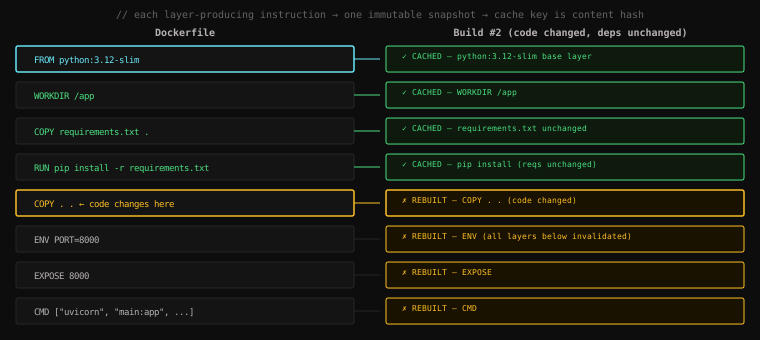
This is the principle of Dockerfile design: put the most stable things at the top, the most frequently changing things at the bottom. A cache miss invalidates every layer below it. Structure your Dockerfile so a code change only misses the last one or two layers.
#.dockerignore — Keeping the Build Context Clean
When you run docker build ., the . is the build context — Docker sends everything in that directory to the daemon before the build starts. If your directory contains node_modules/, .git/, build artifacts, or secrets, they all get sent — even if your COPY instructions never use them. Large contexts slow down every build.
Create .dockerignore alongside your Dockerfile:
.git
.gitignore
__pycache__
*.pyc
*.pyo
.venv
.env
*.log
tests/
README.md
Same syntax as .gitignore. Docker reads it before sending the context. Only what's not ignored gets sent to the daemon. For a Python project this can reduce the context from hundreds of megabytes (if .venv/ is present) to a few kilobytes.
#Running the Container
docker run --rm -p 8080:8000 myapp:1.0INFO: Started server process [1]
INFO: Waiting for application startup.
INFO: Application startup complete.
INFO: Uvicorn running on http://0.0.0.0:8000 (Press CTRL+C to stop)PID [1] — uvicorn is PID 1 inside the container. Signal handling works correctly.
curl http://localhost:8080/{"message":"hello from a container"}Your application, in a container, isolated, portable, reproducible. Anyone with Docker installed can pull this image and run it identically — on their laptop, on a CI server, on any cloud provider. The environment travels with the code.
Key Takeaway: A Dockerfile is a layer recipe — each
RUN,COPY, andADDproduces an immutable snapshot that the build cache can reuse. The single governing principle: order instructions from most-stable to least-stable. Dependencies before code —COPY requirements.txt+RUN pip installbeforeCOPY . .— so that a code change only invalidates the final layers andpip installruns from cache in under a second instead of twelve.CMDsets the default command (overridable atdocker run);ENTRYPOINTmakes the container behave as a fixed executable (CMD becomes its arguments). Always use exec form (["cmd", "arg"]) not shell form so your process is PID 1 and receives signals directly. Always add.dockerignoreto prevent large directories from inflating the build context.